Windows Terminal Ware

First steps. All terminal boot ways

WTware includes operating system and all needed drivers. That's why WTware works without Windows and can't be started "from Windows". WTware runs on a computer with no operating system (though on a computer with hard disk you can let a user select from menu - whether to start local Windows or WTware by net work).

Any computer boot way can be used for WTware boot. During boot WTware:

  1. Downloads its binaries from disk or from TFTP server by network.
  2. Reads from disk or receives from DHCP server by network IP-address and other network settings.
  3. Reads from disk or receives from TFTP/WTwizard server configuration file.

First step is to choose WTware terminal boot way. The fastest way is marked green. It's the way we recommend for a start.

There are several boot ways:
 >  Boot from CD-ROM
 >  Boot from network card with BootROM (PXE, EtherBoot)
 >  Boot from floppy
 >  Boot from USB flash disk
 >  Boot from hard disk

Boot from CD-ROM


Boot from CDROM

Create boot CD Image with the help of "WTware CD Image generator". It is available at Start > Programs > WTware > Boot from CD > CD Image generator.

The fastest way to boot WTware:

1 Specify IP parameters:

makeiso

In the field 1 specify terminal IP-address. Remember, that every computer (and every terminal, print-server, WiFi access point, ADSL-modem and any other device) should have unique IP-address in the network. In the fields 2 and 3 specify address of the computer where WTware is installed and WTware TFTP and WTware Wizard services are started. Terminal configuration files will be stored on this computer.
2 Specify that configuration file should be downloaded from TFTP/WTwizard server:

makeiso
3 Press "Generate CD Image" and select where to save image file. Use any program to burn CD, all CD record programs work with .iso images. Attention, write file to a disk AS CD IMAGE, NOT AS DATA FILE.
4 Boot terminal from this disk. If everything is right, you'll see a screen with the text "Congratulations, you've loaded WTware terminal!". Next step is to tune the terminal or try another, more convenient boot way.

Store configuration file on the disk

You can prepare configuration file and write it to the boot disk:

makeiso

Configuration file name is insignificant. It will be renamed so that any terminal regardless of its MAC-address could boot from this CD and use configuration file parameters.

If you write configuration file to the disk, the terminal requires no TFTP and WTwizard services working. Such way is convenient for remote offices without separated server. But then you are to write new CD to make any changes in configuration file.


Receive IP parameters from DHCP by network

If you have working DHCP server in the network, make the terminal to receive IP settings (terminal address, subnet mask, TFTP address) from DHCP:

makeiso

Then different terminals will be able to boot from disks with the same data. DHCP-server is responsible for generation unique computer addresses in the network. See DHCP configuration for WTware terminals for more details.


CD-ROM with BootROM

You can write BootROM emulator to CD. This terminal boot way is quite similar to boot from network card with BootROM. CD is much more reliable than floppy, 1-4 speed CDROM drive is very cheap. This is the optimal network boot way when you have no network card with BootROM. All you need is to select ROM image .iso file. See how to select BootROM ROM image.


Network boot from network card with BootROM (PXE, EtherBoot)

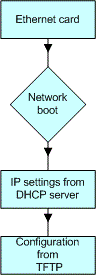
It's the most convenient terminal boot way. Three requirements for network boot:

  1. You should have network cards with BootROM (or just load BootROM emulator from CD, floppy, hard disk). For more details read the article about BootROM.
  2. You should configure DHCP-server correctly.
  3. You should setup TFTP-server. TFTP-server is included into WTware distribution.

Boot from network

When you've met the conditions just start the terminal. Network boot from network card with BootROM helps:

  • to simplify new workplaces addition - you just buy PXE enabled network cards (many new motherboards with integrated network cards already support PXE network booting), connect computer to the network and you have the terminal;
  • to make "user protection" - when the terminal boots by network user failed to damage it;
  • to centralize computer administration - all configuration files are located on the same place, include option helps to move all duplicated parameters into common files, network settings are specified with the help of DHCP server management tool;
  • to update WTware version at once.

Boot from floppy

Write BootROM emulator to a boot floppy. Configure necessary for network boot DHCP and TFTP services. Then WTware will boot by network.


Boot from floppy

Try to write universal BootROM emulator to a floppy. It includes the majority of common network cards drivers. Download ebnet522.img, floppy image with universal Etherboot emulator and rawwritewin-0.7.zip program to write it to a floppy. If this loader failed to detect network card you are to select native driver for your card.


Boot from USB flash disk

Install WTware to a USB flash disk with the help of "WTware USB BOOT" program. It is available at Start > Programs > WTware > Boot from USB > Setup to USB-flash.


Boot form USB storage

You can select whether to write configuration and WTware license files to the disk.

When terminal starts from the flash-disk you can edit configuration file or specify that it should be downloaded from TFTP/WTwizard server. Also you can select whether to IP parameters should be received from DHCP by network or stored on the disk. Press Del during boot to access terminal configuration menu.


Boot from hard disk, IDE-flash, Disk-On-Module


Boot from IDE hdd

Hard disk can contain BootROM emulator. This emulator can be started either from DOS (or Windows 95/98/ME, user can select from menu during boot), or from hard disk without operating system. In this case terminal boot is similar to network boot from network card with BootROM. See documentation for more details about BootROM.

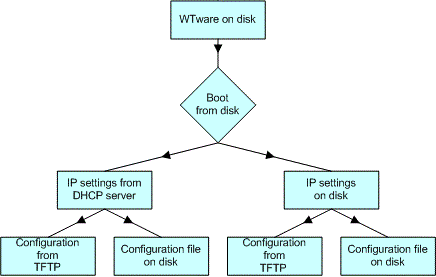
Also WTware can be installed on a hard disk. You can select - whether to download configuration file from TFTP/WTwizard server (that is more preferred for all configuration files are located on the single server) or to store it on the terminal disk. If it is stored to the disk you can edit it directly on the terminal. Also you can select whether network settings should be received from DHCP by network or stored on the terminal disk. The terminal that stores configuration file and IP settings on its hard disk requires no network services working. Such terminals are convenient for remote offices.

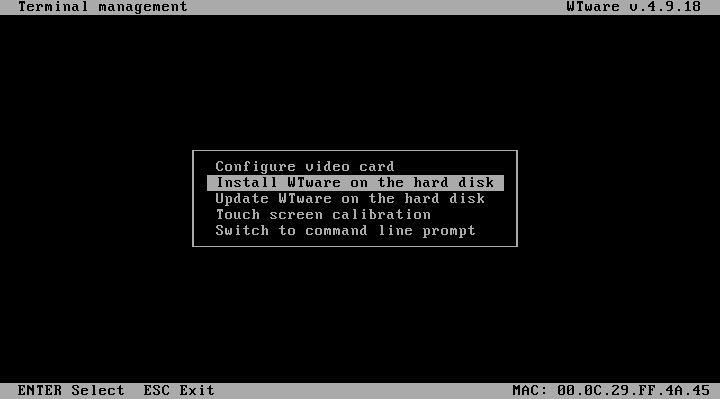
WTware installation requires at least 16Mb hard disk, i.e. IDE flash-disks will do perfectly. Remember: WTware installes itself on a hard disk, and there's no any other way to install it now. I.e. to setup (and upgrade versions further) you are to boot the terminal using any other way: from CDROM, USB-flash or by network. Press Del during terminal boot and select menu item "Setup WTware on hard disk". Hard disk should be connected as Master device to the first (or zero) IDE channel.


If you have any comments or remarks to this article, please, let us know!


© 2002-2008 WTware Windows Terminal Ware